Homebrew on macOS: The Complete 2026 Guide to Installing, Updating, and Cleaning Up
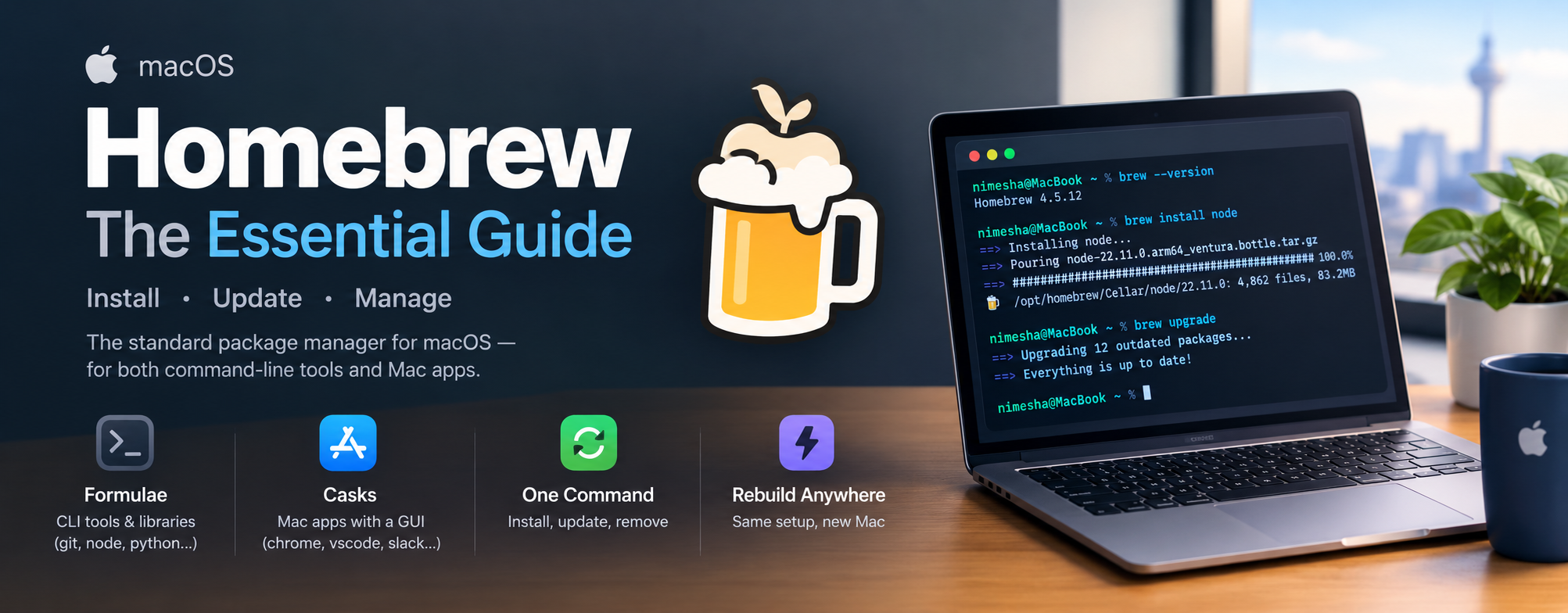
Homebrew is the standard package manager for macOS — one tool, run from the Terminal, that installs, updates, and removes both developer tools and ordinary Mac apps.
It manages two kinds of software. Formulae are command-line tools and libraries — git, node, python, ffmpeg. Casks are regular Mac apps with a window and an icon — google-chrome, visual-studio-code, slack. Every tool installs the same way, updates come from one command, and you can rebuild a whole machine's setup on a new Mac in minutes.
Installing Homebrew
Install it with the one-line script from brew.sh, then add it to your PATH so the brew command works in every new Terminal window.
1. Paste the installer into Terminal (copy it fresh from brew.sh if in doubt):
/bin/bash -c "$(curl -fsSL https://raw.githubusercontent.com/Homebrew/install/HEAD/install.sh)"2. On Apple Silicon Macs (M1 and newer), Homebrew lives in /opt/homebrew. Add it to your shell so it loads automatically:
echo 'eval "$(/opt/homebrew/bin/brew shellenv)"' >> ~/.zprofile
eval "$(/opt/homebrew/bin/brew shellenv)"
3. Check that everything is working:
brew --version
brew doctor
On Intel Macs, Homebrew installs to /usr/local and is usually on your PATH already, but Intel support is winding down — see what's new in 2026 below. The installer prints the exact PATH lines for your machine at the end, so follow those if they differ. Prefer a regular installer? Apple Silicon Macs on macOS Sequoia 15 or later can use the official .pkg from Homebrew's GitHub releases page.
Everyday Commands
These ten commands cover almost everything you'll do day to day.
| Task | Command | What it does |
|---|---|---|
| Search | brew search <keyword> | Finds formulae and casks matching a name. |
| Get details | brew info <name> | Shows version, dependencies, install size, and any caveats. |
| Install a tool | brew install <formula> | Installs a command-line tool, e.g. brew install git. |
| Install an app | brew install --cask <app> | Installs a Mac app, e.g. brew install --cask visual-studio-code. |
| List installed | brew list | Shows everything you have installed (--cask for apps only). |
| See what's outdated | brew outdated | Lists packages with newer versions available. |
| Update everything | brew update && brew upgrade | Refreshes package data, then upgrades all packages. |
| Uninstall | brew uninstall <name> | Removes the package (add --cask for apps). |
| Clean up | brew cleanup | Deletes old versions and cached downloads. |
| Health check | brew doctor | Flags setup problems and tells you how to fix them. |
Tip: brew install <name> also works for most apps without --cask. Use --cask when a tool and an app share the same name, or just to be explicit.
Keeping Everything Up to Date
One line updates Homebrew and every tool and app it manages:
brew update && brew upgradebrew updaterefreshes Homebrew itself and its list of available packages and versions.brew upgradeinstalls the newer versions of everything you have installed.
A safer routine, if you like to see changes before they happen:
brew updateto refresh package data.brew outdatedto see what would change.brew upgradefor everything, orbrew upgrade <name>for one package.
Apps that update themselves Chrome, Slack, Zoom, and similar apps are handled carefully so Homebrew never downgrades them.brew upgradereplaces one only when the installed app is older than Homebrew's latest version, and skips it when it can't tell. To upgrade all of them regardless, runbrew upgrade --greedy.
Uninstalling Cleanly
brew uninstall removes the package itself, but not the dependencies it pulled in or an app's settings. Use these to clean up fully:
| Goal | Command |
|---|---|
| Remove a tool | brew uninstall <formula> |
| Remove an app | brew uninstall --cask <app> |
| Remove an app plus its settings, caches, and support files | brew uninstall --cask --zap <app> |
| Remove dependencies nothing uses anymore | brew autoremove |
Use --zap with care: it deletes the app's preferences and data, so you start from scratch if you reinstall.
Freeing Disk Space
Homebrew keeps older versions and downloaded installers in case you need to roll back, and brew cleanup deletes them.
brew cleanup -n           # preview what would be deleted
brew cleanup              # remove old versions and stale downloads
brew cleanup --prune=all  # also clear every cached download
Homebrew already runs a cleanup automatically after installs and upgrades, and a fuller one every 30 days. Running it by hand is mainly useful when you need space right away. To see where the download cache lives, run brew --cache.
Power-User Features
Three features make Homebrew far more useful once the basics feel natural.
Brewfile backups
Dump your whole setup to a plain-text file, check it into a dotfiles repo, and rebuild a new Mac with one command.
Background services
Run databases and servers like PostgreSQL or Redis in the background, with start-at-login built in.
Version pinning
Freeze a formula or cask at its current version so brew upgrade leaves it alone.
Back up your setup with a Brewfile
A Brewfile is a plain-text list of everything you have installed. Keep it in your dotfiles or a Git repo, and a new Mac is ready in one command.
brew bundle dump --file=~/Brewfile     # save your current setup
brew bundle --file=~/Brewfile          # install everything on a new Mac
brew bundle cleanup --file=~/Brewfile  # list anything not in the Brewfile
A Brewfile looks like this:
brew "git"
brew "node"
cask "visual-studio-code"
cask "google-chrome"
Run background services
Databases and servers such as postgresql or redis can run in the background and start at login:
brew services list              # see what is running
brew services start <name>      # start now and at every login
brew services stop <name>       # stop it
Hold a version in place
If a project depends on a specific version of a tool or app, pin it so brew upgrade leaves it alone:
brew pin <name>     # freeze the current version
brew unpin <name>   # allow upgrades again
Troubleshooting and Good Habits
When something goes wrong, run brew doctor first. It catches most problems and prints the fix.
| Problem | Fix |
|---|---|
zsh: command not found: brew | Homebrew is not on your PATH. Rerun the brew shellenv lines from the install section, then open a new Terminal window. |
| Permission errors | Never use sudo with brew. Run brew doctor and follow its advice on fixing folder ownership. |
| An install failed halfway | Run brew reinstall <name>. |
| A tool behaves oddly after an upgrade | Check brew info <name> for caveats, or pin the previous version next time. |
| Apps lose Dock position or permissions after an upgrade | Give Terminal the App Management permission in System Settings → Privacy & Security, so Homebrew can upgrade apps in place. |
| Not sure if something depends on a package | Run brew uses --installed <name> before uninstalling it. |
A few habits keep things smooth: run brew update && brew upgrade weekly rather than letting updates pile up, read the caveats printed after an install since they often contain setup steps you need, and keep your Brewfile in version control, refreshing it with brew bundle dump --force after big changes.
What's New in 2026
Homebrew 7.0.0, released September 13, 2026, is the current version, and brew update moves you to new versions automatically. The changes that matter for everyday use:
| Version | Released | What matters for everyday users |
|---|---|---|
| 7.0.0 | 13 Sep 2026 | Faster installs and upgrades. Built-in brew vulns checks installed tools for known vulnerabilities. brew install --dry-run previews an install. An official Mac app (BrewUI) via brew install homebrew-app on macOS Tahoe 26+. |
| 6.0.0 | 11 Jun 2026 | Third-party taps must be trusted before their code runs. Casks can now be pinned. New brew exec runs a formula's command, similar to npx. |
| 5.1.0 | 10 Mar 2026 | brew version-install installs an older version of a formula in one step. Brewfiles can include Cargo, uv, and Flatpak packages. |
| 5.0.0 | 12 Nov 2025 | Parallel downloads on by default. --no-quarantine deprecated, and apps failing macOS Gatekeeper checks are disabled from September 2026. |
What to do about it:
- Intel Mac: Homebrew still runs but builds no new prebuilt packages for Intel, and it stops running on Intel in September 2027. Plan a move to Apple Silicon, or switch to MacPorts.
- macOS Sonoma 14 or older: upgrade to Sequoia 15 or later to keep getting prebuilt packages. Catalina 10.15 and older are no longer supported.
- Third-party taps: expect Homebrew to ask you to trust each one — see Tap Trust.